
Owners of 110,944 websites can't be wrong
All-in-one WordPress content syndicator






























Any content sources to posts and pages
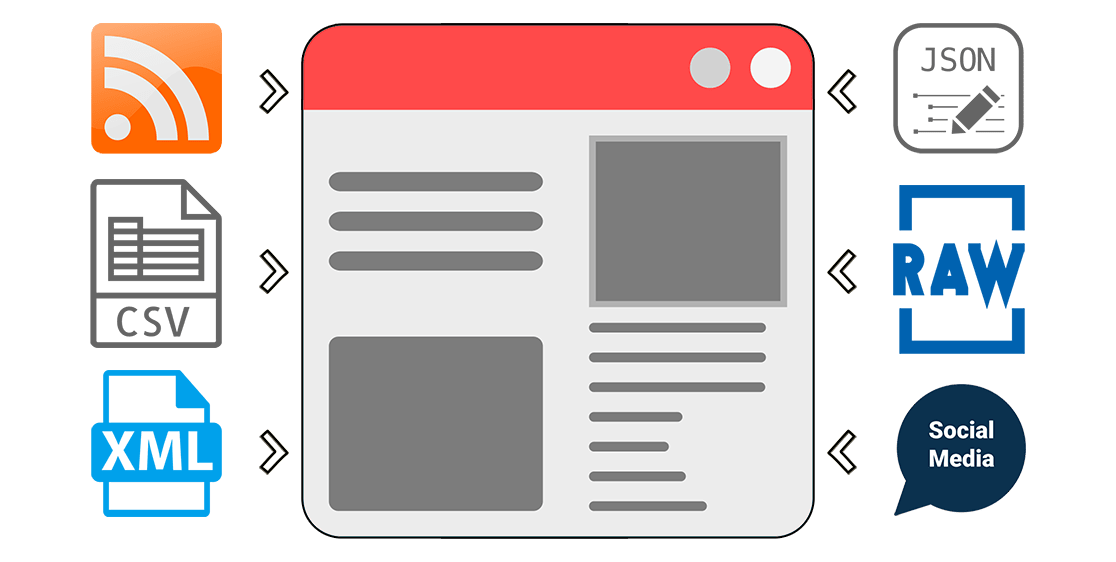
While most of the content syndication plugins for WordPress only support RSS feeds, CyberSEO Pro lets you also import XML feeds, JSON feeds, HTML web pages, XML sitemap files, CSV files and pipe/comma/semicolon-delimited raw text dumps just as easily as you normally do with regular RSS feeds. The list of supported content sources also includes video tubes (YouTube, Vimeo, DailyMotion), social networks (Instagram, Reddit, Tumblr, Flickr, Pinterest), online marketplaces (Amazon, AliExpress, ShareASale etc). You can easily use all these content sources to automatically generate posts and pages for your websites. Make sure the content you want to import is allowed by its owner to be reposted.
AI-generated articles
If you're already familiar with services like ChatGPT, Gemini Pro, or Claude for content creation and crave even more versatility, you'll find the integration of these advanced AI technologies with the comprehensive range of text AI models from OpenRouter.ai incredibly powerful. This plugin not only enhances your imported articles with rewritten or newly added AI-generated content but also empowers you to craft book-length WordPress posts on any subject. Easily create rich and cohesive content from scratch or leverage a variety of supported content sources. With the support of OpenAI GPT-4 Turbo, Anthropic Claude, Google Gemini Pro, Mistral Large, Llama 2 and the expansive capabilities of OpenRouter.ai - which includes free, open-source, and uncensored models - your content generation possibilities are virtually limitless.

AI-generated images
Create stunning images directly from your text descriptions with Midjourney, DALL∙E 3 by OpenAI, and Stable Diffusion XL, all integrated into CyberSEO Pro. Using powerful artificial intelligence technologies, each image is uniquely generated for your site. If you've seen AI-generated images online and thought about using them in your WordPress posts, CyberSEO Pro makes it happen. Take advantage of this opportunity to make your content stand out from the crowd. At the very least, is there any other autoblogging plugin out there that allows you to use all three of the top AI image generation technologies on full autopilot like this?

Full article extractor
Not all RSS feeds contain full articles, images and videos. Many are limited to short excerpts only. CyberSEO Pro is integrated with the most advanced Full-Text RSS script which allows you to extract full articles from feeds containing only short extracts. Please keep in mind that even if the Full-Text RSS script is extremely powerful, its not almighty, so in some rare cases it could be unable to parse some particular HTML layout. However in 99% cases to does it work just perfectly. If the universal method is not suitable, you can extract the full-text article using container tags according to your own settings.

Wide range of media content
In addition to importing images from feeds and generating them with Midjourney, DALL∙E and Stable Diffusion artificial intelligence, the CyberSEO Pro plugin allows you to automatically add free full-size pictures from Pixabay's two-million image collection as well as Creative Common content from Google Images and YouTube videos matching the post content or the keywords you specify. Alternatively, the plugin allows you to enhance your articles with random images from a specified file subdirectory on your server. Thus, CyberSEO Pro plugin offers a wide range of graphic content sources to enrich your articles.

Text translation
The plugin will automatically translate your imported articles from and to almost any language, using well-known automated translation services such as Google Translate, Yandex Translate and DeepL. Combined with the integrated WPML and Polylang plugins, your website will reach a much wider International audience and get even more SE traffic. The plugin supports all national character encoding sets and able to dynamically convert them into the UTF-8 format. Have you seen any other RSS import plugin which can do that?

Spin and rewrite
The name of the plugin itself suggests that it is equipped with a full set of tools for search engine optimization of the generated content. CybeSEO Pro supports nested Spintax and has a built-in Synonymizer/Rewriter where you can upload your own synonym tables. In addition, the plugin is integrated with the famous 3rd-party content spinners. CyberSEO Pro features an exclusive built-in OpenAI GPT spinner based on OpenAI GPT-3.5 and GPT-4, that spins HTML pages without being limited by OpenAI models' token restrictions! The spinner preserves your actual HTML layout, including paragraphs, headings, embedded images and videos, tables, lists, and even code blocks written in any programming language.

Auto-comments
Have you ever thought about the fact that comments on the pages of your WordPress site are also content that are indexed by search engines? So why not use them as additional content to your posts? The CyberSEO Pro plugin allows you to randomly and organically add comments to your posts. So where do you get the content of these comments from? You can use a manually prepared text comment list that contains the necessary keywords. You can import them from RSS feeds. And, of course, you can generate them with OpenAI GPT. Do not confuse this method with spam, because the plugin places auto-comments ONLY on your own site. Think of this method as a regular content import. The only difference is that the content will be added as comments to existing posts.

Content filtering
Use the built-in filter set to import only the articles you want by keywords and key phrases, tags, text length and original publication date. In addition, you can automatically filter images to be used as post thumbnails by a given size (e.g. sort out all source pictures that look too small with your current WordPress theme layout). This tool will save you time - just leave it to CyberSEO Pro and the plugin will do it for you on full autopilot, because robots know no fatigue.

HTML templates with placeholders and shortcodes
Customize your posts with unique HTML templates for post titles, content and excerpts. This tool enables you to craft a distinctive layout for every aspect of your generated posts using HTML markup. Integrate placeholders to pinpoint the placement of text, media attachments, and data from XML fields of your imported content source. For instance, if you're syndicating an RSS feed that contains text articles but lacks media content, and you want to enhance its appeal for your site's visitors, simply insert a special shortcode either above or below your post. Prepend and append custom HTML text blocks to feed content. The plugin will then automatically embed AI-generated text or images, significantly improving the visual and informational quality of your content.

WordPress post properties
Get full control on all WordPress post properties, such custom templates, custom taxonomies, post type, post categories, post tags, post format, post author, publication date, post status and custom fields, which you can add or modify in any way you want. Generate post thumbnails (featured images) on the fly and host them at your own server or hotlink from remote web resources. CyberSEO Pro is capable of generating WordPress posts for any custom post type, including WooCommerce products and beyond.

Presets
CyberSEO Pro has many various settings that allow you to configure the plugin to import almost any content. However, it can be difficult for a new user to understand which options to configure, for example, to import a YouTube RSS feed, a product from Amazon or to generate a post with a video from a Reddit or IGN feed. So the plugin comes with a library of presets that allow to syndicate the common content sources with just a couple of mouse clicks. Moreover, you can extend this library by your own presets to use them in your further campaigns.

WordPress all post import
By default a WordPress RSS feed contains only the 10 most recent posts. In some cases, however, you need to import all the posts available on a site that runs on WordPress. What do you do in this case, if the RSS feed doesn't already contain them? A special feature of the CyberSEO Pro plugin, called WordPress archive parser, easily solve this problem. Simply enable this option in the feed settings of the site you want syndicate from, and the plugin will import all the posts published there for all the times. Consider the fact that a third of all websites on the web run WordPress today.

XML Sitemap parser
Do you want to import articles from a site that doesn't have an RSS feed for some unknown reason? It's strange to have a site without an RSS feed these days, but it happens. Fortunately, almost any site has a sitemap.xml file, and usually there are several (one for posts, one for pages, one for categories etc). Sitemaps are an easy way for webmasters to inform search engines about pages on their sites that are available for crawling. In order to syndicate all pages on any site that has a sitemap.xml, you simply have to give that link to CyberSEO Pro and the plugin will take care of it in the same way as Google indexes the pages of your own website.

Stealth capabilities and mimicry
Want to become invisible? In this case CyberSEO Pro will provide you with support for anonymous proxy lists, so you can hide your server IP when your site connects to other sites. If that's not enough, you can mimic any HTTP referrer (aka referer spoofing). Our plugin also knows how to fake user agent, so your server can pretend to be a web browser, a Google bot, a feed validator or whatever. How about a possibility to encrypt (cloak) the referral codes in all your affiliate links? Maybe a connection to a remote server requires some specific HTTP headers? Well, that is also possible with CyberSEO Pro.

One unified interface for all content sources
Forget about all those plugins that give you different options for each particular content source, which is often disappointing or frustrating. With CyberSEO Pro it doesn't matter which exactly content source you syndicate, whether it's an RSS news feed, a Reddit account, an arbitrary CSV file, a product list from Amazon, videos from YouTube, Vimeo etc - you will always see exactly the same interface with an absolutely identical set of tools and options without exceptions and compromises.

Custom PHP snippets
CyberSEO Pro allows you to use your own code snippets to process imported articles in depth and make any manipulations to the content, title and all properties of your WordPress posts. This option gives absolutely unlimited possibilities to anyone familiar with PHP programming. See the examples of PHP code snippets in the manual.

Continuous updates and improvements
CyberSEO Pro is not a product that was once written by its developers and then forgotten and abandoned. Our plugin has been constantly updated and improved since 2006. All bugs reported by users are fixed, new features and progressive innovations such as artificial intelligence are added. So CyberSEO Pro always stays at the cutting edge of the modern IT-technology. Check the plugin's changelog and see for yourself that work on the plugin never stops. When you buy CyberSEO Pro, you are buying a live product, not an old abandoned house with ghosts..

Large user community and responsive support
The CyberSEO Pro plugin has been on the market since 2006. All this time it is constantly improving and developing, being on the cutting edge of modern technologies. CyberSEO Pro users can always count on fast and responsive support via e-mail, as well as on the official support forum with more than two thousand active members. No single question or a request will go unanswered. If you find a bug or want a new feature added to the plugin, just post it on our forum. Yes, it's that simple! Free dedicated support is included in the CyberSEO Pro license.

Haven't made a decision yet?
Feeling frustrated and lacking some features that the CyberSEO Pro plugin is unable to provide you with, or do you find its price too high? Since its release in 2006, CyberSEO Pro has never had competition. We invite you to compare it with the features and prices of other content curation plugins such as WP RSS Aggregator, Feedzy RSS Feeds, WP Robot, WP Automatic, PostSaint, WP All Import Pro, etc...
If you find a more powerful multi-source AI-powered content curation plugin for WordPress at a better price, report it, and we'll reward you with $1000 for sharing the information.

Specialized solutions
If you find the CyberSEO Pro plugin too robust and complex for your needs, we recommend that you consider these two more specialized plugins, each designed exclusively for a specific task. If you need a universal AI-powered plugin for importing RSS feeds into WordPress, the RSS Retriever plugin is definitely worth checking out. On the other hand, if you are looking for a powerful autoblogging plugin that supports the latest AI text and image generation technologies, then AI Autoblogger is the ideal choice for you because it is easier to use and offers more features for article generation than CyberSEO Pro.

Very useful plugin with excellent support
CyberSEO Pro is a plugin with awesome creative powers if you know how to use it right. It is perhaps not the easiest plugin to get into, but there is a ton of documentation and detailed guides available. The plugin is constantly being developed and renewed. But it is the support that sets it apart: I get very quick response and solutions whenever I have questions.

Very helpful support and amazing product for blogging
This product takes a tiny bit of a learning curve if you’re new to it, but once you learn how to use it – you’re going to love it. It’s one of the most useful products you can use for blogging. Saves time and money. Awesome job on this!

Most Full-Featured Plugin With Superb Support
This plugin works briliantly! It is so flexible, with a multitude of configuration options, that you can easily make it do exactly what you want.
As important is the quality of support! I had a couple of suggestions that I thought would improve the workflow of the plugin, and they were both perfectly implemented in about a day! This level of support for a plugin is virtually unheard of!
I cannot recommend this plugin more highly!

Awesome Plugin & Support
I have been using CyberSEO Pro for a few months, and it has worked great. I’ve had a couple of minor issues and got a quick response from the developer, who resolved them quickly. I have tried other RSS feed plugins, and this has been the best experience. I would recommend it to anyone who wants a plugin that works every time. Updates are ongoing, and that is important for any software. Great investment for the money!!
Thanks for all your help!!

Great product and service
After using CyberSEO Lite for a few years I am now CyberSEO Pro user and can’t be happier with the product. You get better functionality and flexibility than the competition on affordable price. Customer service is prompt and helpful as they helped me with a small issue on my site in no time.
Great overall experience !

You must be logged in to submit a review.